What happens to your photo
Three things, in one to three minutes, and you watch each one land on screen with the picture it produced. No account, nothing to install, and no card anywhere on the site.
One photo in, one carve-ready sheet out
- Step one
You hand over one photo
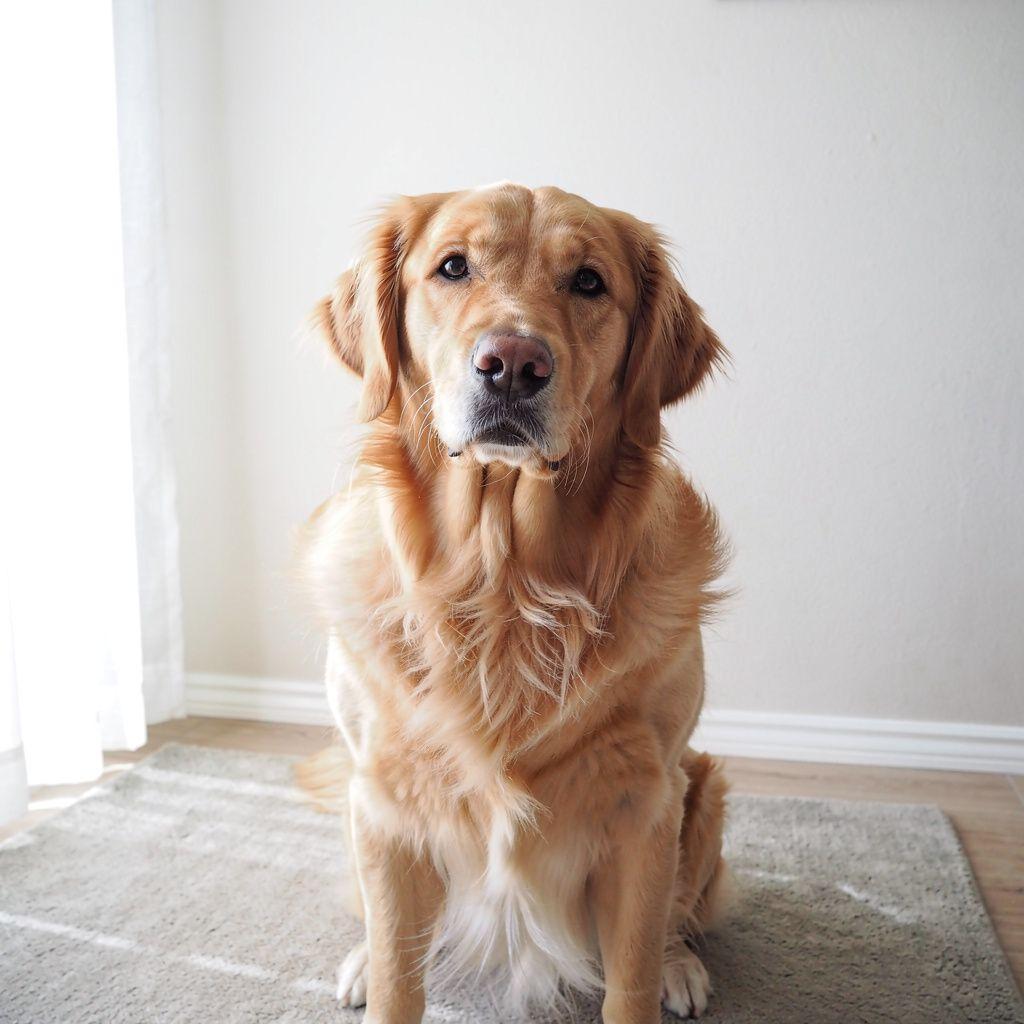
A photo like this one Whatever your phone took. JPEG, PNG, or a HEIC straight off an iPhone. The first thing that happens is that we lift your pet off whatever was behind them, so the room they were standing in stops mattering.
- Step two
We redraw your pet, we don't filter it
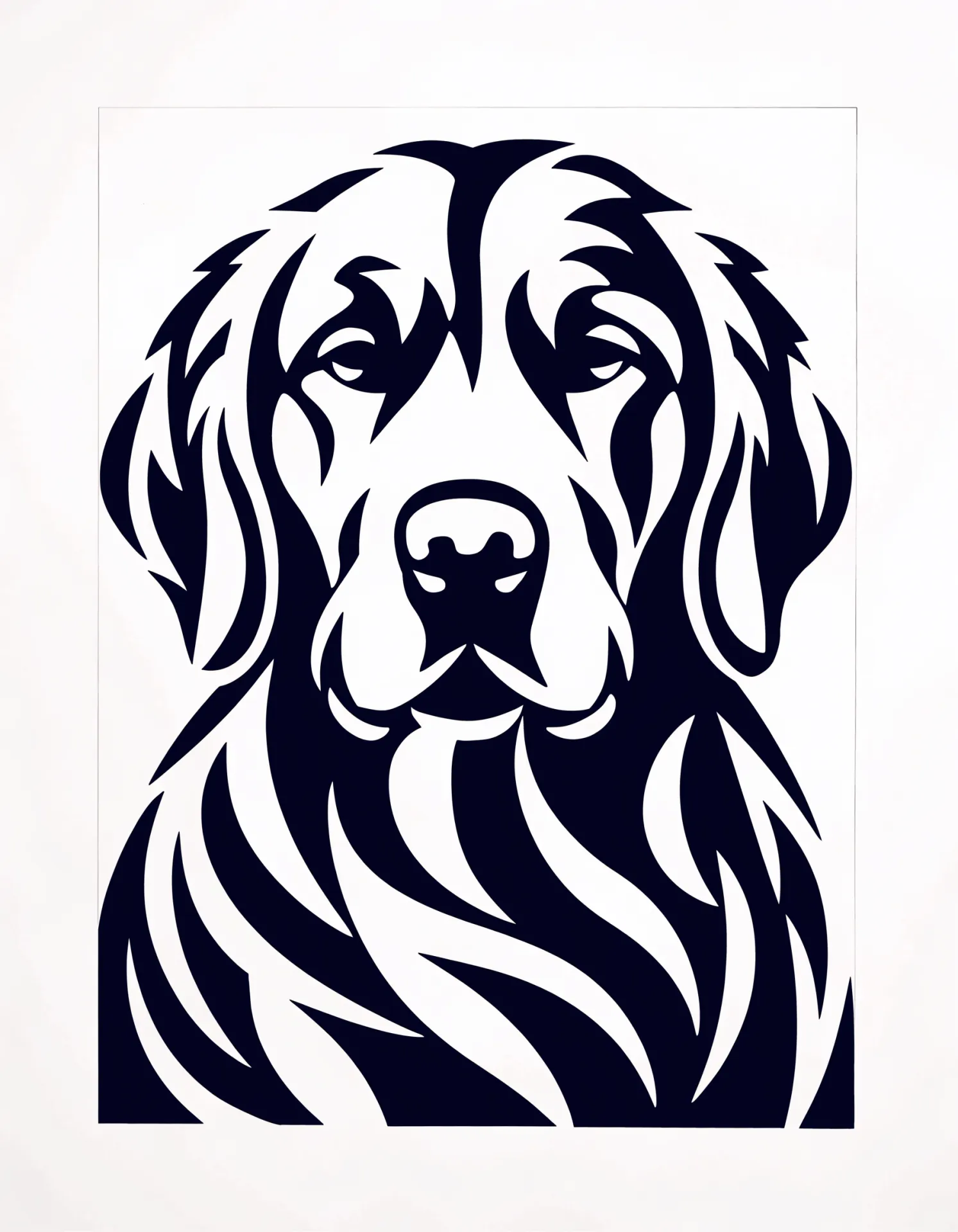
A sheet like this one A filter traces the pixels you already have. We draw the animal again as a bust portrait, ask for nine line-art candidates instead of one, build a stencil sheet from each, and throw away every sheet whose supports would not survive a real pumpkin. Most of the wait is spent here, on one call we cannot cut into pieces.
- Step three
You print it, tape it, cut it
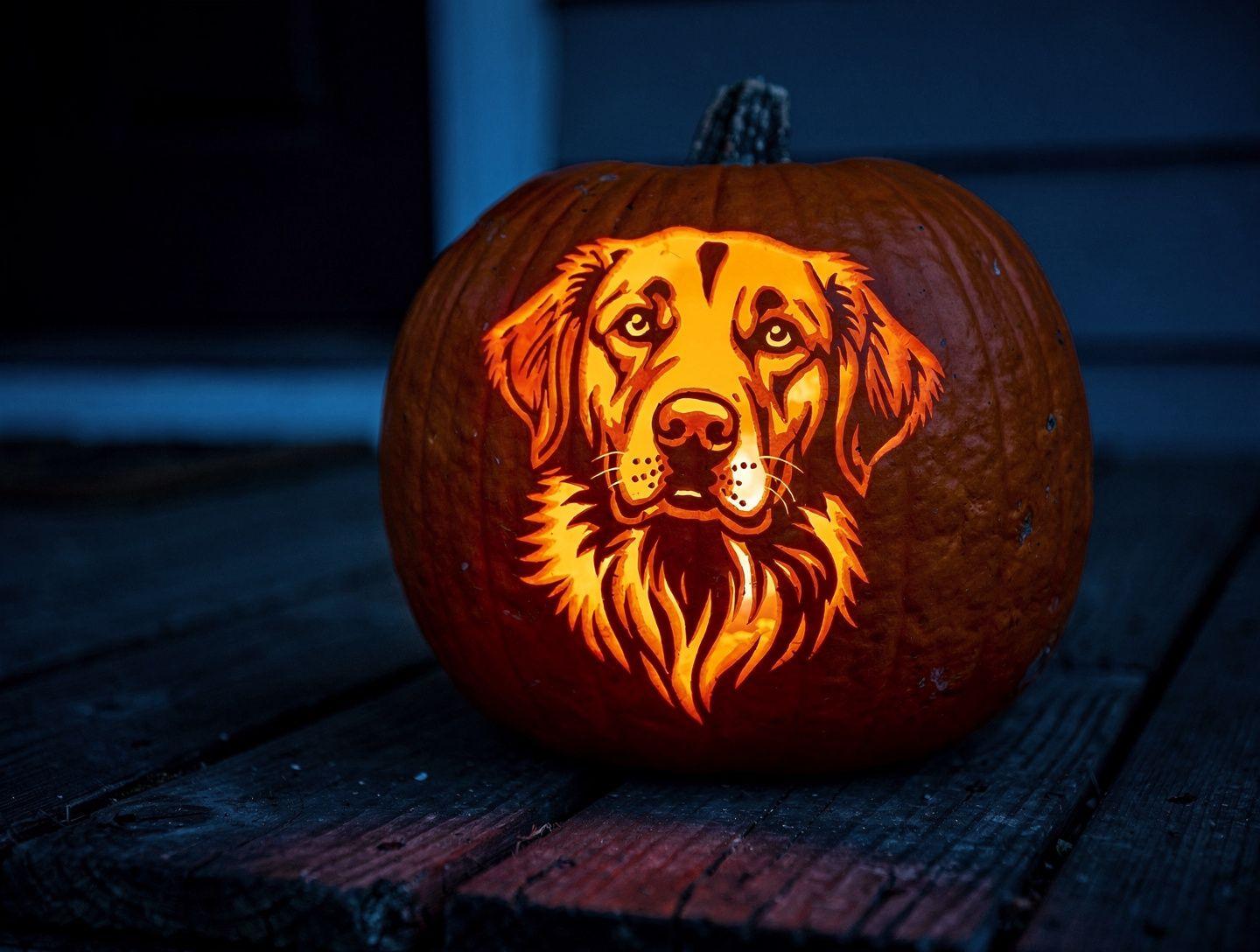
A pumpkin like this one Plain paper and tape, which is the equipment everybody already has. Tape the sheet to the pumpkin, cut the black, leave the white. The print-ready pack adds the mirrored copy of each page, for tracing from the inside.
All three pictures are illustrations, not engine output. Nobody has photographed a real carved one yet, and we would rather say so than show you a simulation and call it a photograph.
What makes a photo work
The engine is reading a face. Give it a face it can read and it needs fewer attempts.
- A bright, front-facing photo
- Daylight or a window, with your pet looking towards the camera. We redraw the face we can see, and a profile only gives us half of one.
- One clear subject filling the frame
- One animal, close enough that the head takes up most of the picture. Two pets in one photo gives us two heads and no portrait.
- No busy background, no heavy shadow
- A plain wall or a rug beats a cluttered room. Hard shadow across the face reads as another shape to cut, and you end up with a hole where the cheek was.
A phone photo is the right kind of photo. Nothing is stored against your name, because there is no account to store it against.
Sometimes no design survives
A normal outcome on a hard photo, not an error page.
Every one of the nine candidates has to hold together on a real pumpkin, and on a dark-furred pet in dim light there are runs where none of them do. When that happens the result screen says so and offers you another go.
Retries on the same photo are free and never ask for an email address. If two or three come back empty, the photo is the thing to change: a brighter one, taken closer, with the face turned towards you.
Print at 100%, or the check is void
The one way a checked stencil can still fall apart.
Print dialogs default to Fit to page, which quietly shrinks the sheet by a few per cent. A sheet printed at 94% has supports that are 94% as wide, and those supports were measured in millimetres on the pumpkin, not in pixels on the page. Your printer can undo the carve check without telling you.
- Print the cover page on its own first.
- Hold a ruler against the bar. It should measure 100 mm.
- If it comes up short, set the print dialog to 100% or Actual size instead of Fit to page, and print the pack again.
You choose the pumpkin size on the result screen: 110 mm, 150 mm or 260 mm across. Medium at 150 mm is preselected and prints on one sheet. Large at 260 mm prints across several sheets you tape together — how many depends on the shape of your own design, so no honest number exists until it has been laid out, and the pack states the exact count when it has.
That is the whole of it. Start with one photo.
The upload is on the pumpkin page. You will have a finished sheet on screen in one to three minutes, free, with no account.
Start with a photoWant to see a finished one first? Look at a worked example